1. Use the "Marker Konverter" to convert a CSV file into a CSV file
Open the free Marker Konverter, select "CSV" and set "convert" to "CSV for Apple Numbers". Generate and download the file. Wenn du Probleme beim Konvertieren der Datei hast, kannst du dich an den kostenlosen Support wenden.
Ensure that the CSV file contains columns labelled "Timecode In", "Name" and "Comment". Otherwise, it will not work. You can also add columns for 'Colour' and 'Timecode Out'.
2. Import the CSV file into Numbers
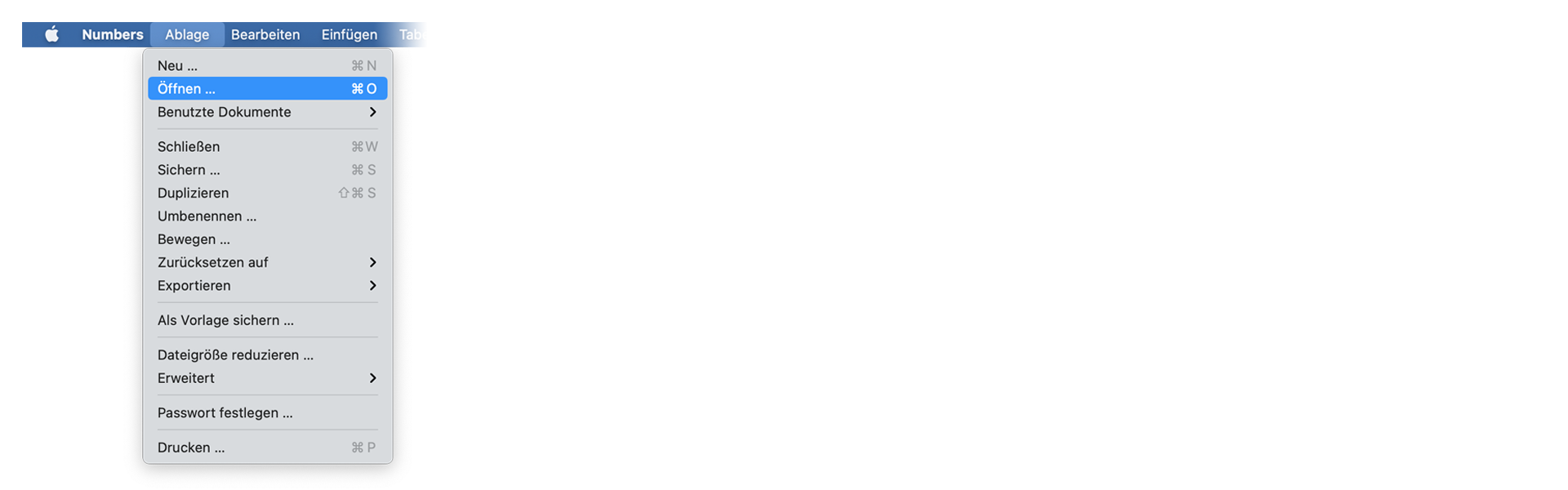
Open Numbers and go to "File -> Open". Simply open the CSV file.
🚀 Fertig
Das war's fürs Erste! Wenn du dieses Tutorial hilfreich fandest, teile es bitte, um uns zu unterstützen. Wenn du Vorschläge hast, wie wir den Workflow verbessern könnten, lass es uns wissen!