1. Export an EDL marker file from DaVinci Resolve
- Select the sequence in your media tab.
- Make the right click on the sequence timeline in your media tab and it will open the popup.
- Navigate to: "Timeline > Export > Timeline Markers to EDL"
2. Use the "Marker Konverter" to convert the EDL marker file into a CSV file
Open the free Marker Konverter, select "DaVinci Resolve > Sequence (.edl)" and set "convert" to "CSV for Apple Numbers". Generate and download the file. Wenn du Probleme beim Konvertieren der Datei hast, kannst du dich an den kostenlosen Support wenden.
3. Import the CSV file into Numbers
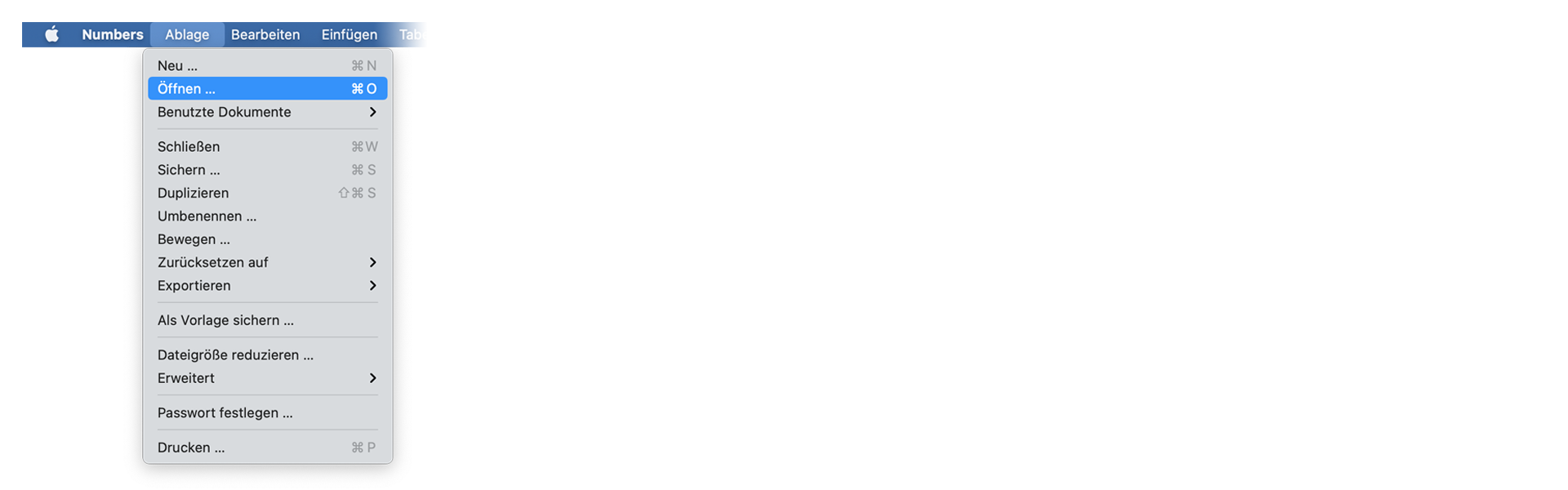
Open Numbers and go to "File -> Open". Simply open the CSV file.
🚀 Fertig
Das war's fürs Erste! Wenn du dieses Tutorial hilfreich fandest, teile es bitte, um uns zu unterstützen. Wenn du Vorschläge hast, wie wir den Workflow verbessern könnten, lass es uns wissen!