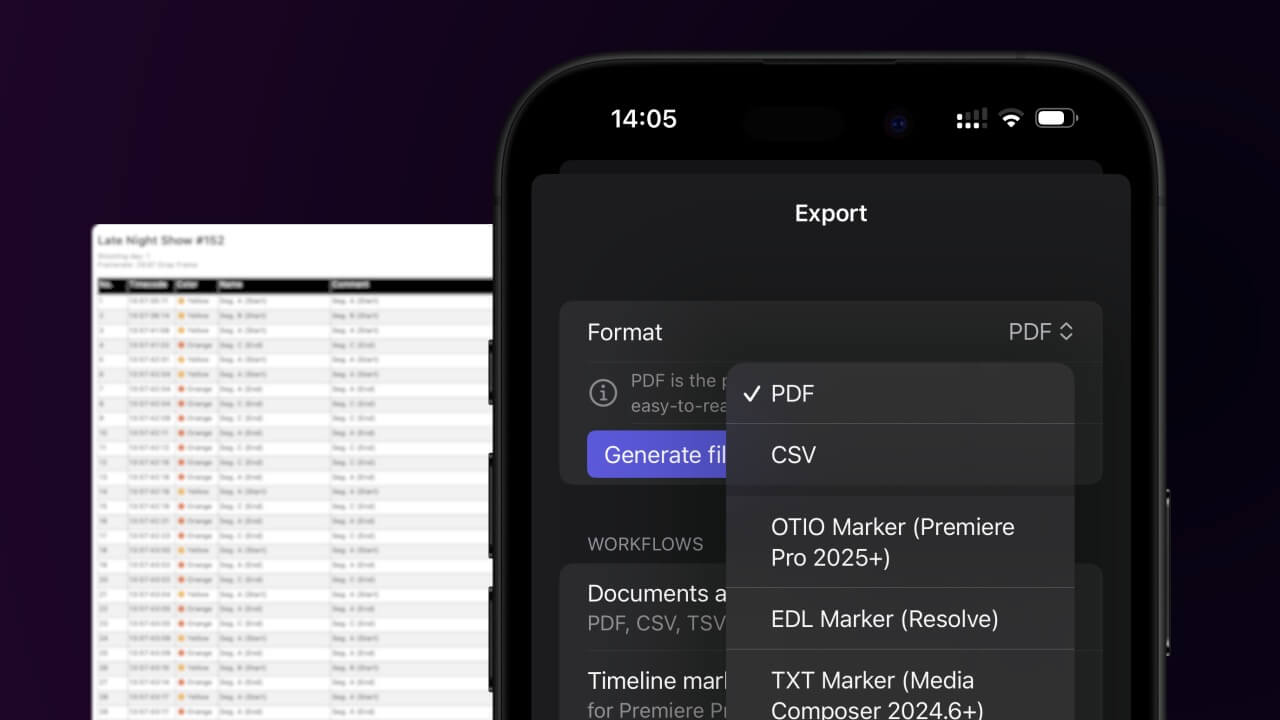
1. Export a CSV file from Live Timecode Notes app
Open the project in the app, then select "Export Notes" from the top menu. Select "CSV". Generate and save the file.
2. Use the "Untertitel Tool & Konverter" to convert the CSV file into an Avid Script Sync subtitle file
Open the free Untertitel Tool & Konverter, select "CSV" and set "convert" to "Avid Script Sync". Generate and download the file. Wenn du Probleme beim Konvertieren der Datei hast, kannst du dich an den kostenlosen Support wenden.
Make sure the CSV contains a column called "Timecode In", "Timecode Out" and "Subtitle". Otherwise it will not work.
🚀 Fertig
Das war's fürs Erste! Wenn du dieses Tutorial hilfreich fandest, teile es bitte, um uns zu unterstützen. Wenn du Vorschläge hast, wie wir den Workflow verbessern könnten, lass es uns wissen!